
Get to know your connection.
Find what is using your bandwidth, investigate a bad gaming session, or check an unfamiliar connection. Here is how Network Workbench helps. These features are implemented in the development build; the screenshots use sample traffic.
Look back without losing the detail.
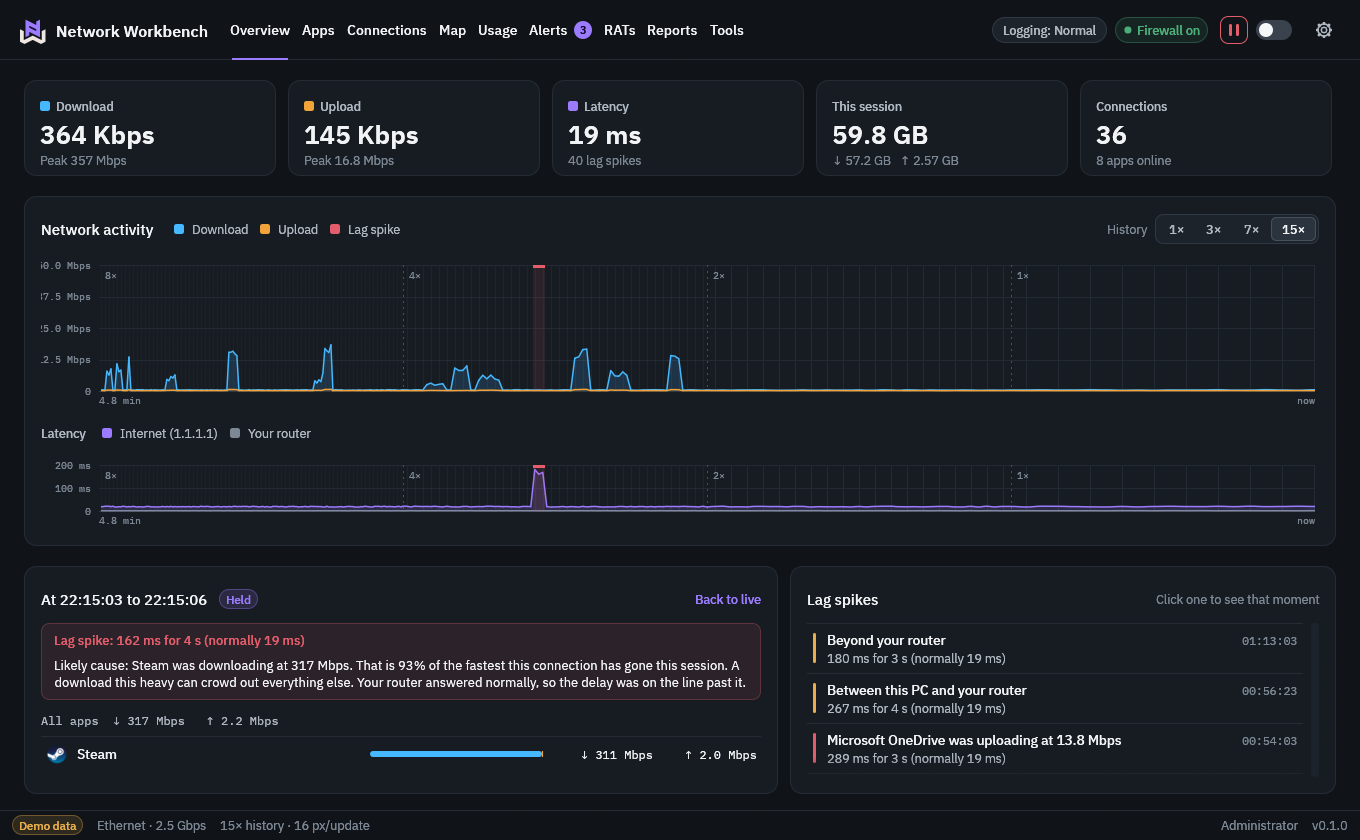
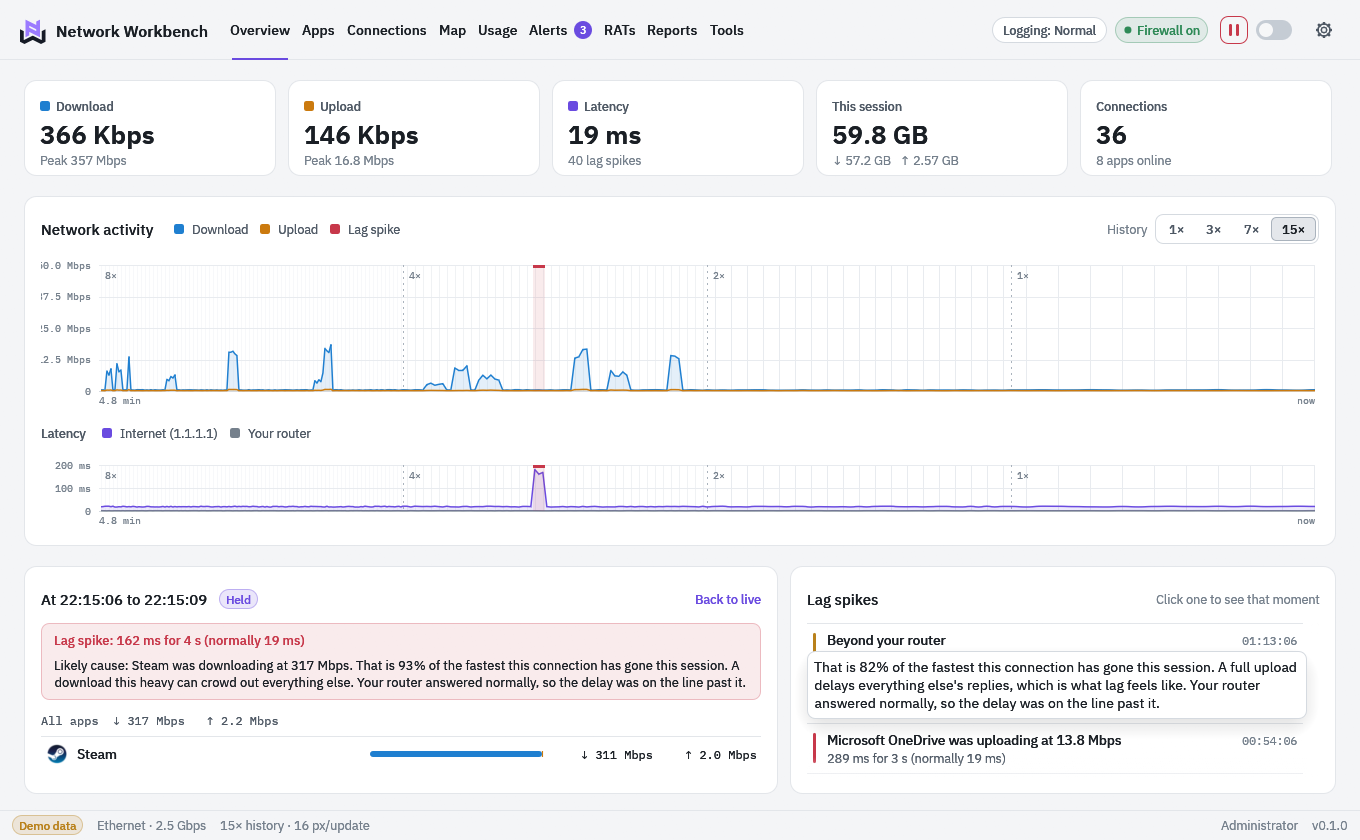
You do not have to catch a slowdown as it happens. Your chart fits about five minutes of activity in one window, keeping the latest half minute in full detail and gradually compressing older traffic.
Brief spikes stay visible because each compressed step keeps its lowest and highest values. Point at a moment to see which of your apps were moving data, then click to hold it while you investigate.
- Compression of 3, 7 or 15 times, or off
- Rates in Mbps or MB/s
- Per-app detail needs administrator rights
Find a likely cause for your lag.
When your game stutters, you want to know where to look. Network Workbench pings your router and an internet address you choose once a second. You can use your game server as the target. Slow or missing replies are marked on your chart.
For each spike, see whether the delay was between your PC and router or beyond your router. If one of your apps was suddenly downloading or uploading heavily, you get its name and transfer rate alongside the spike.
These are clues from timing, not proof of a single cause.
- On at every logging level
- Writes nothing to disk
- Can be switched off
A map of where your PC connects.
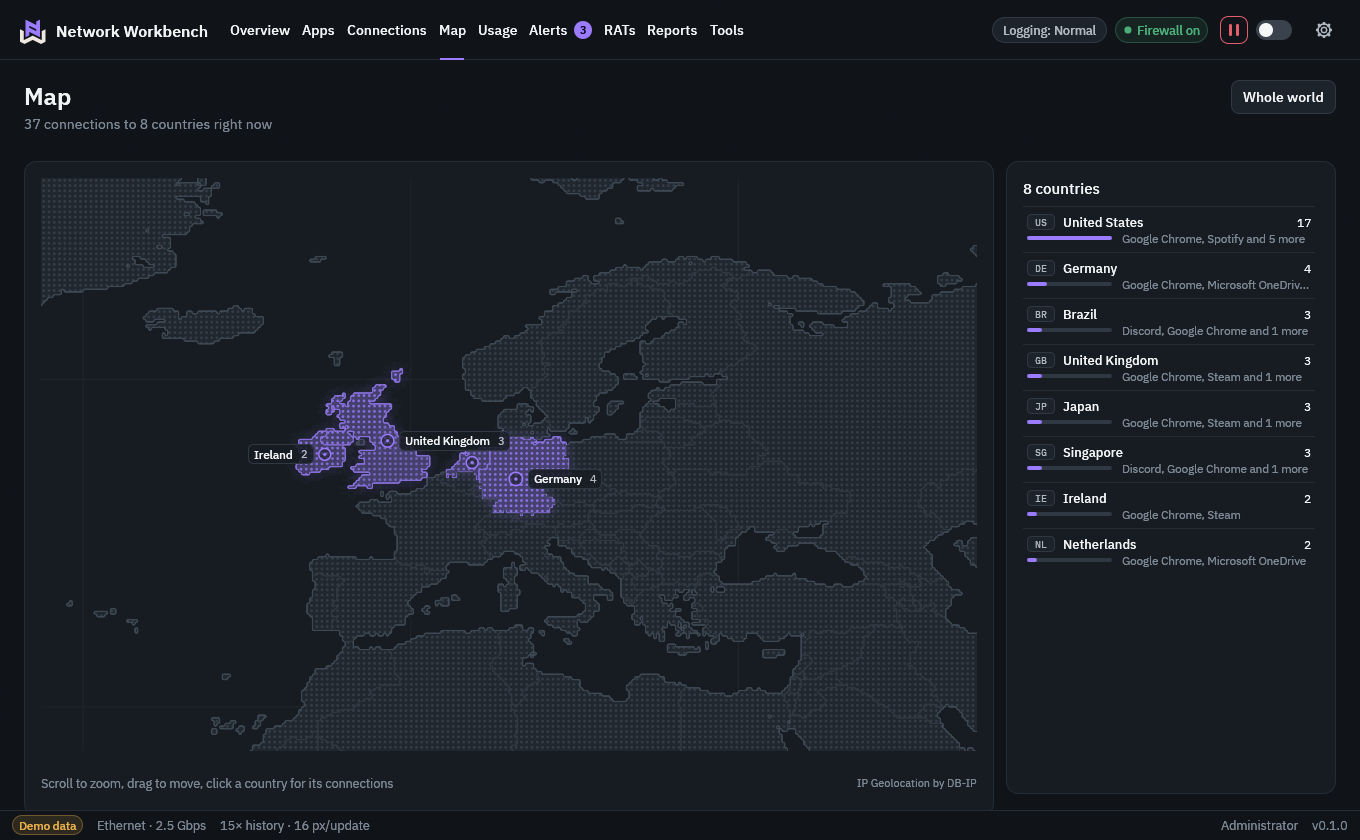
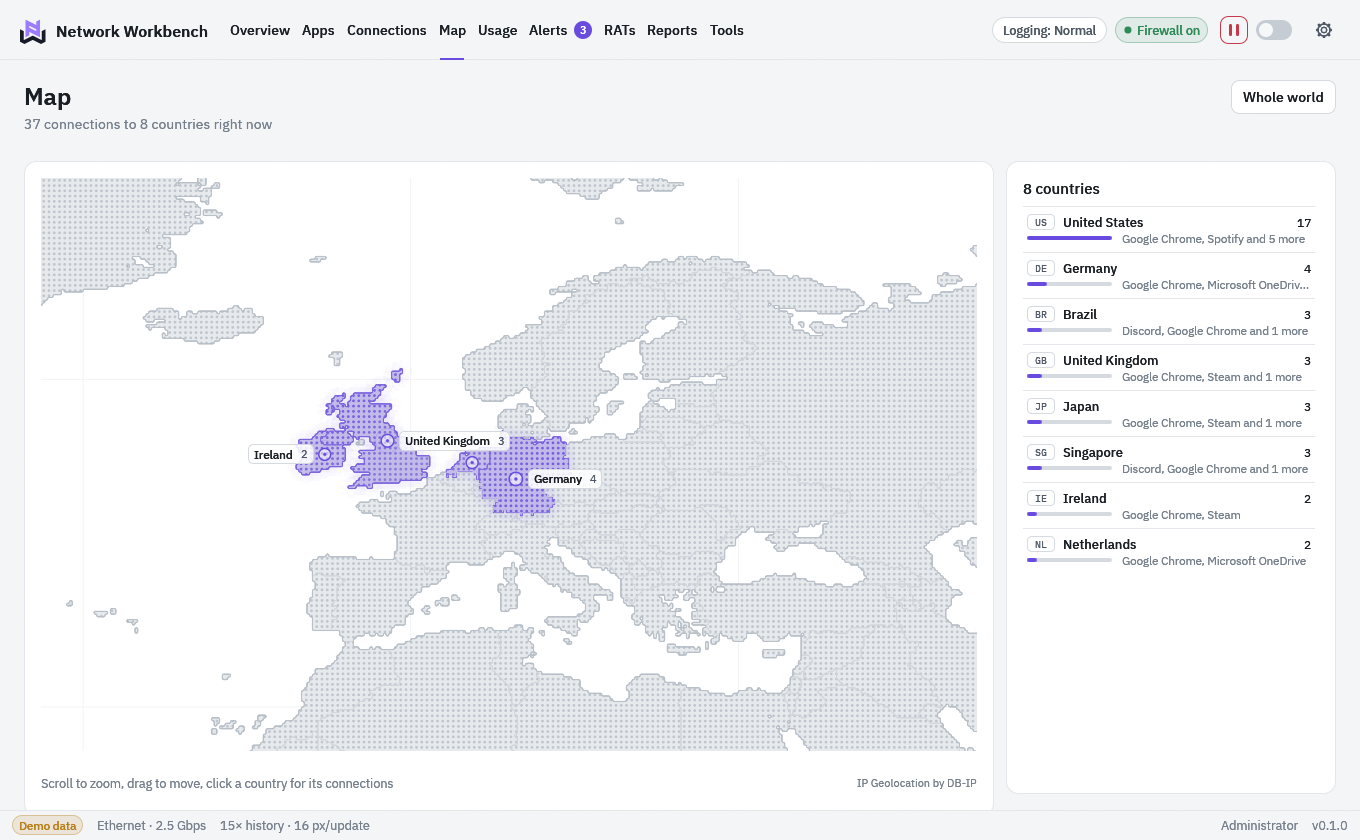
The Map page lights every country your PC is connected to right now, brighter where there are more connections, with the countries ranked beside it. Scroll to zoom, drag to move, and click a country to list its connections.
Countries come from a table built into the app, so looking one up sends nothing anywhere. A country is where an address is registered: approximate, and no judgement of who runs the server.
- Works offline
- Searchable by country in Connections
- IP geolocation by DB-IP
Check what could give someone remote access.
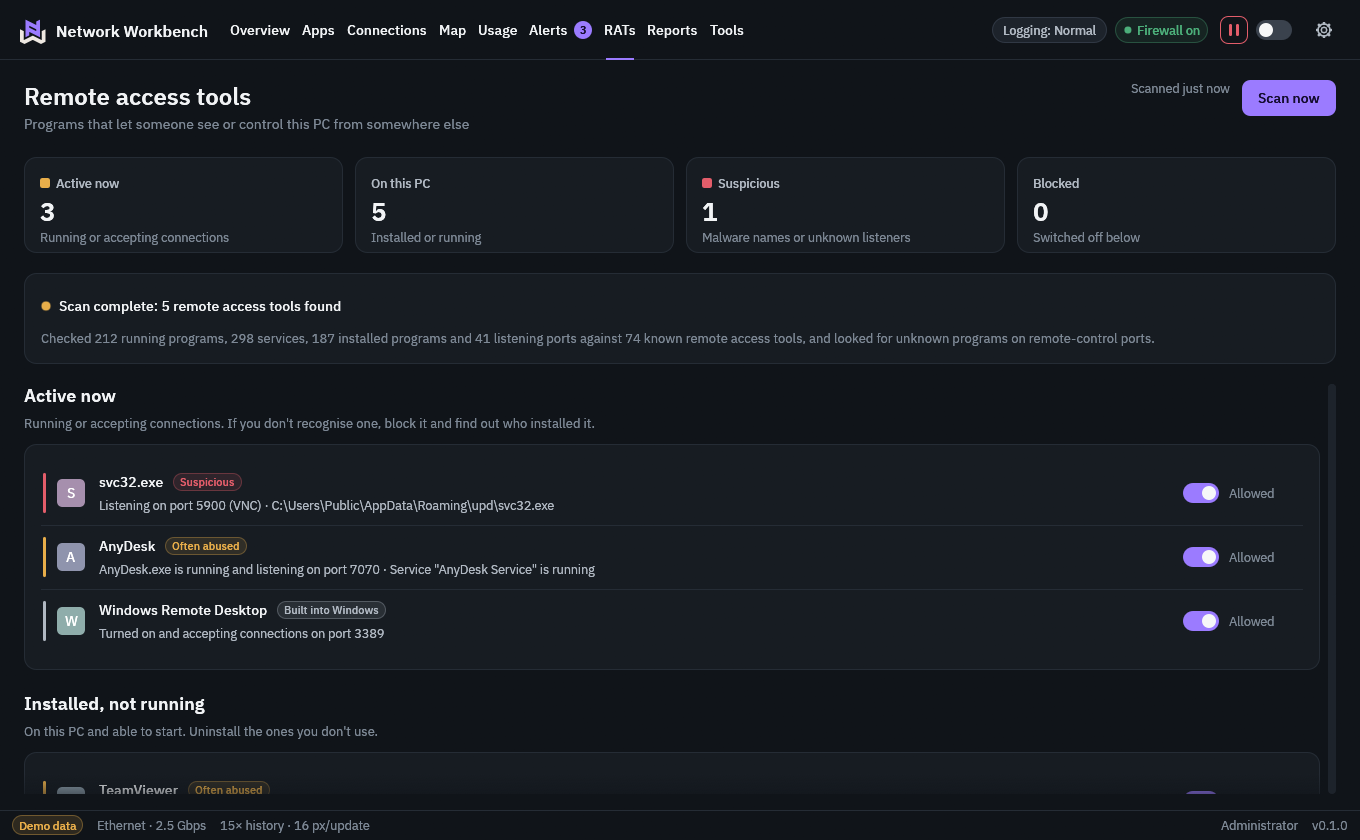
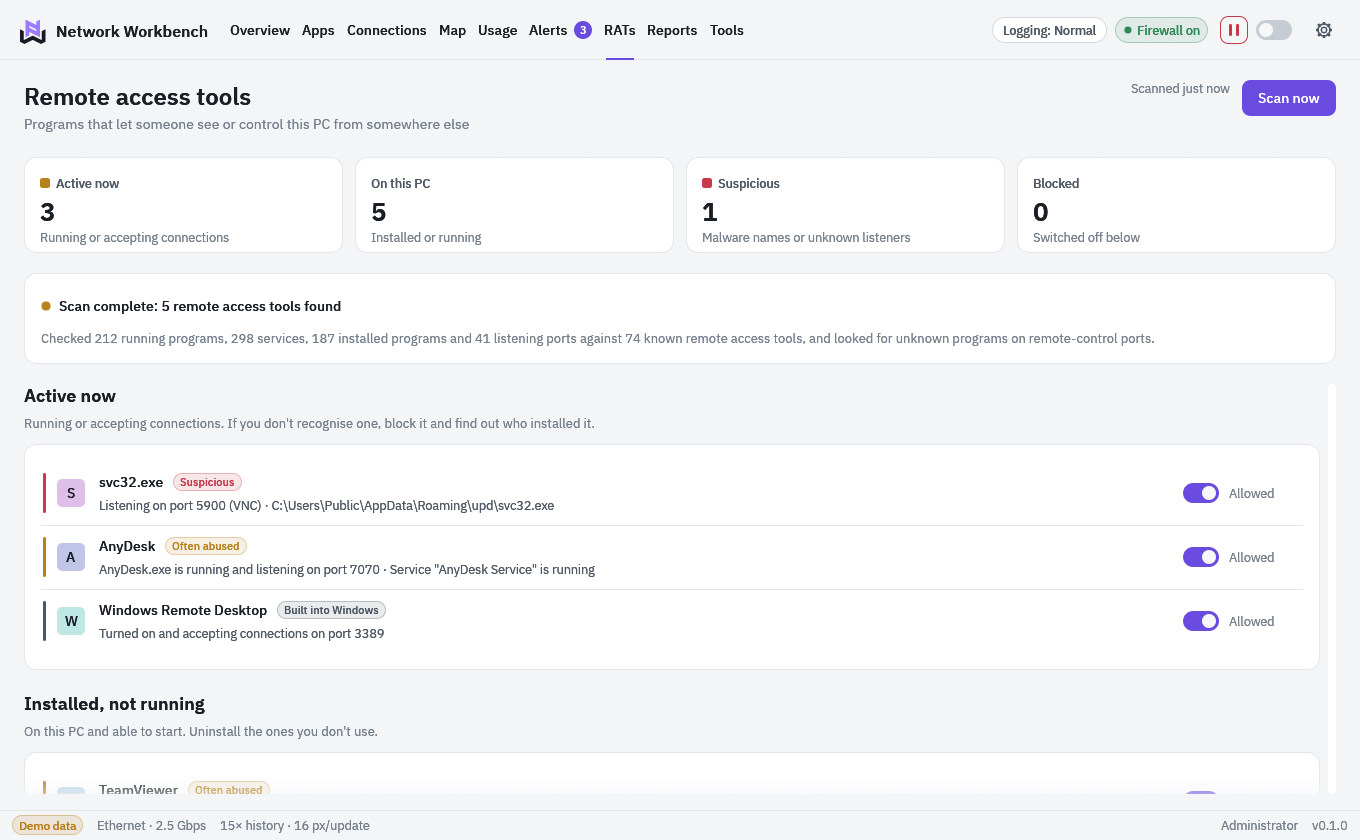
If someone has helped you remotely, their software may still be installed. The RATs page helps you check: it looks for Windows remote access features, remote desktop products, tunnels and known malware by its usual names.
It checks running programs, services, installed programs and listening ports against about 75 known tools. A program it does not know that listens on a remote-control port is listed as suspicious, which is how a renamed tool gets caught. Each finding has a switch to block it, and a new one raises an alert.
Malware built to hide may not show up. A clean scan is a good sign, not proof, and no replacement for antivirus.
- Scans every minute and on demand
- No administrator rights needed to scan
Decide which apps can use your connection.
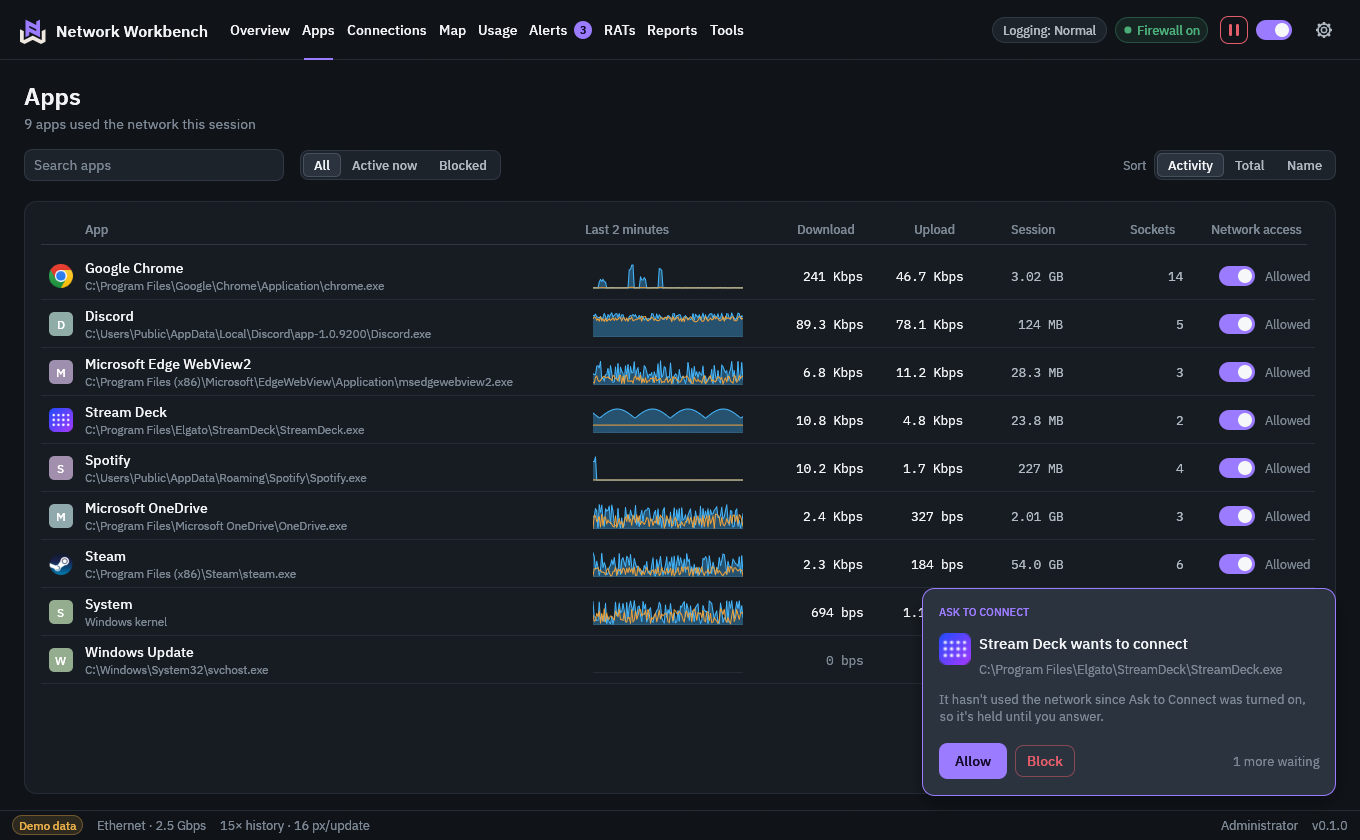
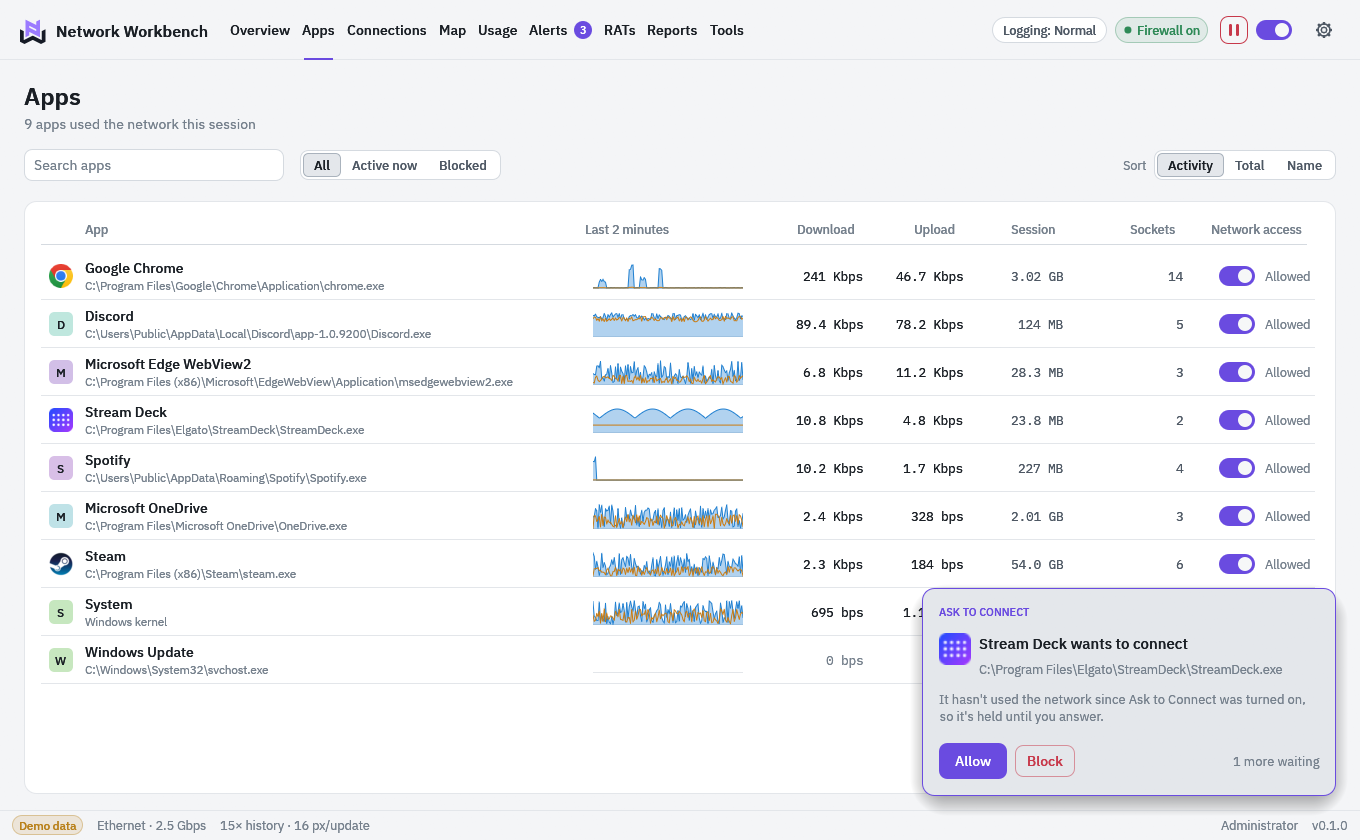
Every app has a switch. Off blocks it in both directions using the Windows Filtering Platform, and the block stays after the window closes and after a restart. Windows’ own service hosts are protected, so a switch cannot cut off DNS or Windows Update by accident.
With Ask to Connect on, an app that has not been allowed cannot connect out until you answer. Allow it and it is remembered. This protects while Network Workbench is running; the app’s first attempt has already failed, and most apps try again by themselves.
Pause all traffic stops everything until you resume. It ends by itself if the app closes. Unblock all apps removes every rule Network Workbench added. Windows Firewall stays on underneath throughout.
- Blocking needs administrator rights
- Without them the app still monitors
See how your connection held up while you played.
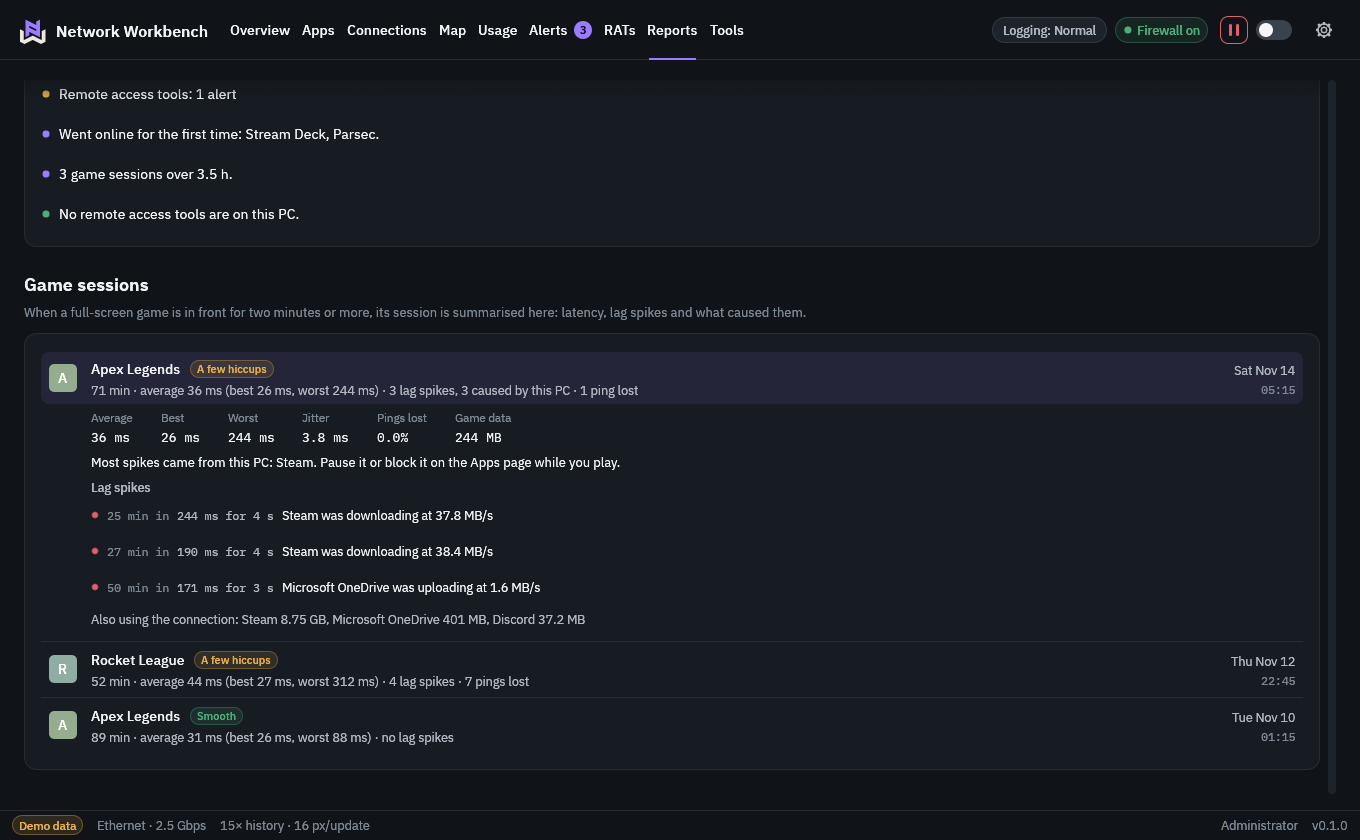
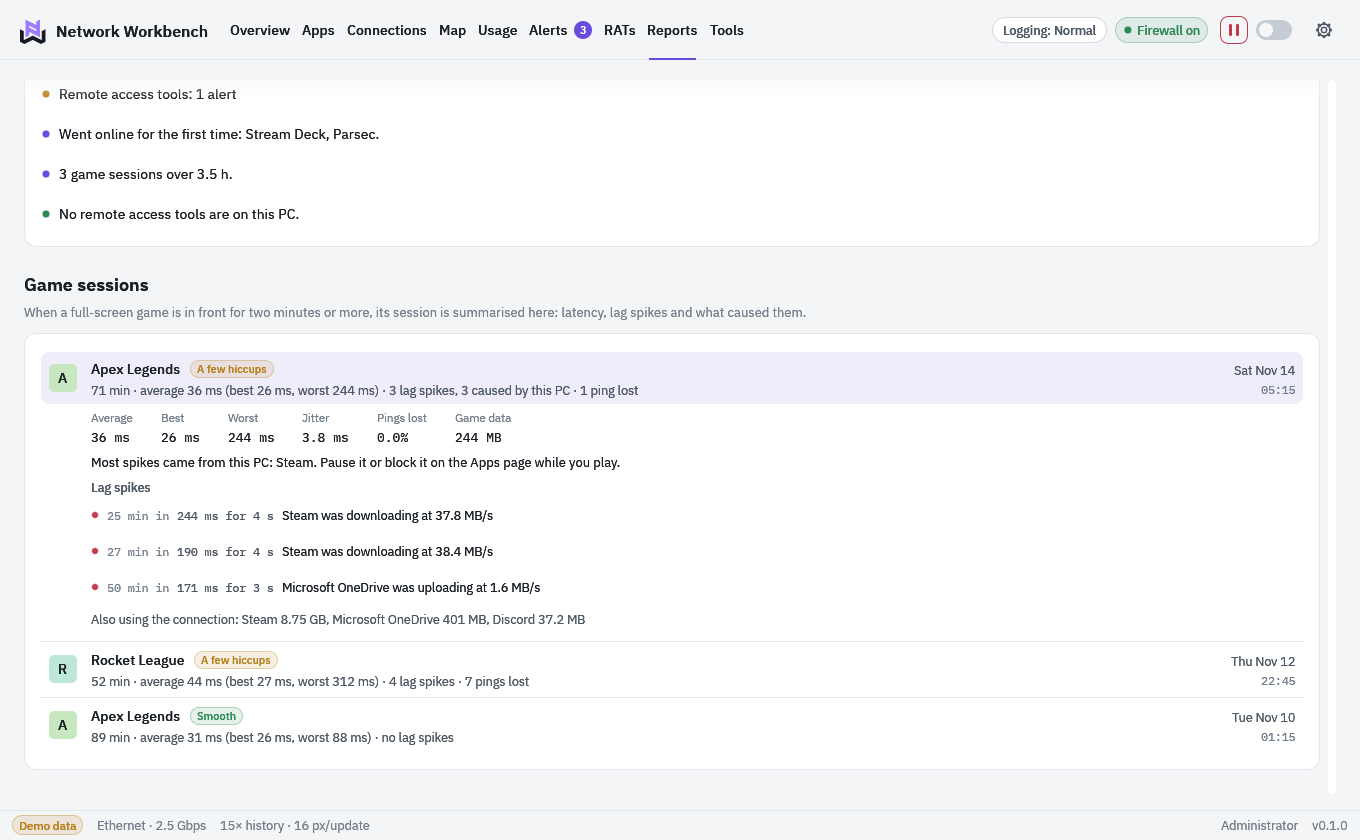
Finish your game, then check your session in Reports. You can see how long you played, your data use, average and worst latency, and each lag spike with its likely cause. A Smooth, Hiccups or Rough grade gives you a quick overview.
While you play full-screen, logging can drop to Minimal automatically and Windows holds notifications until you are done.
- Sessions under two minutes are dropped
- Alt-tabbing for up to a minute does not end one
Know where your data allowance went.
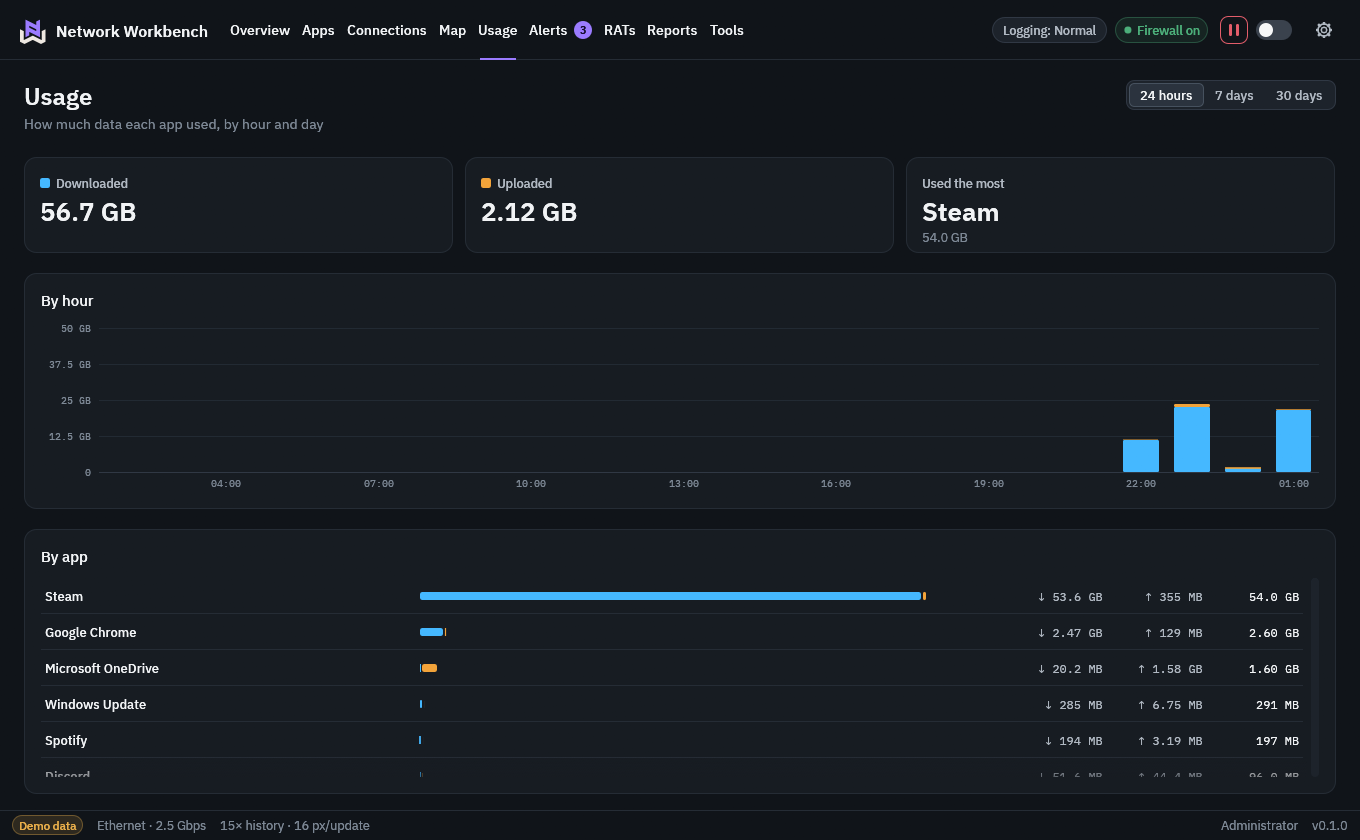
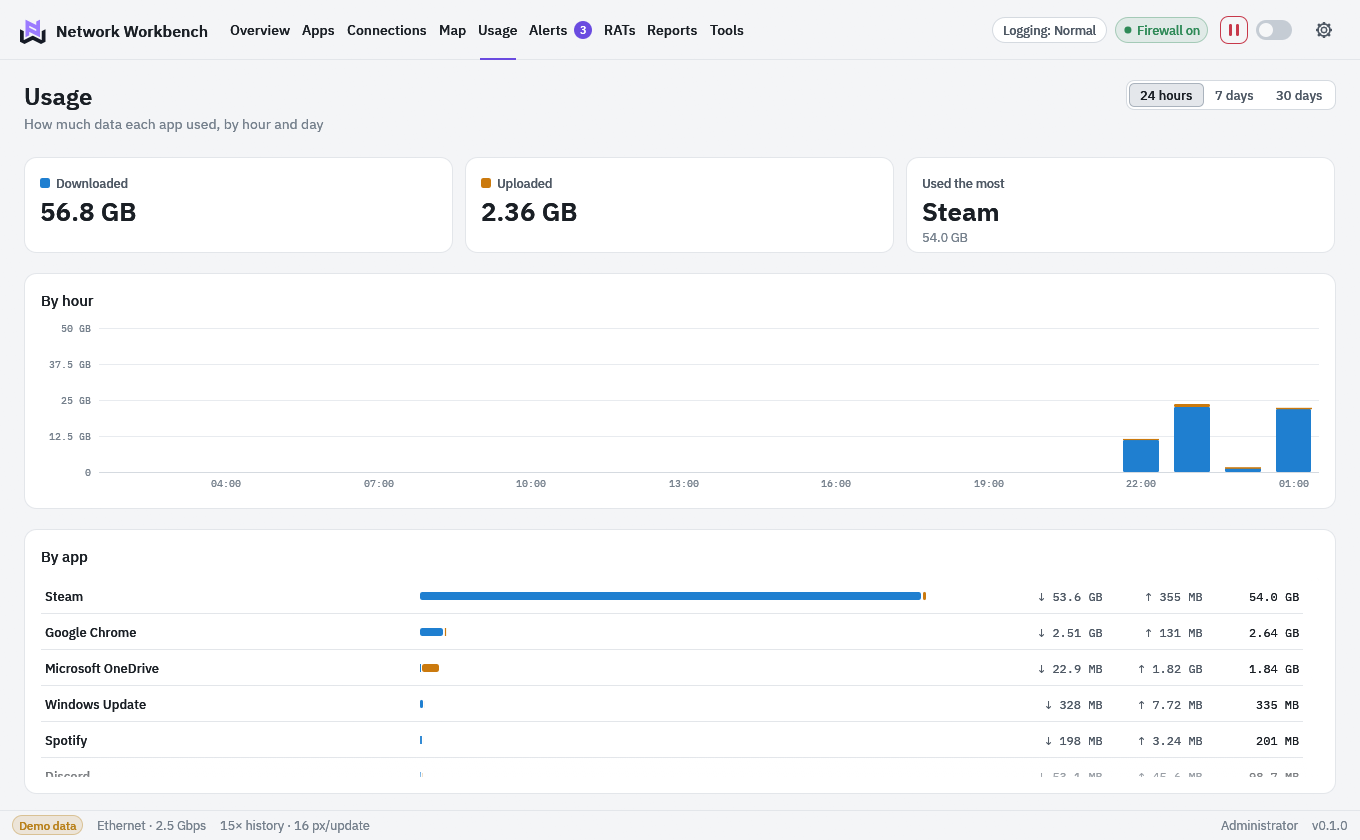
Usage shows the last 24 hours, 7 days or 30 days, by app. Set a monthly data allowance and the plan appears as a bar, with alerts at 80% and 100%.
The weekly report gathers data used against the week before, the busiest apps, apps that used the network for the first time, alerts, lag spikes, games played and remote access tools present.
- Normal logging keeps 90 days by the minute
- Detailed adds 30 days of connections
- Minimal keeps no traffic history
Alerts for changes that matter.
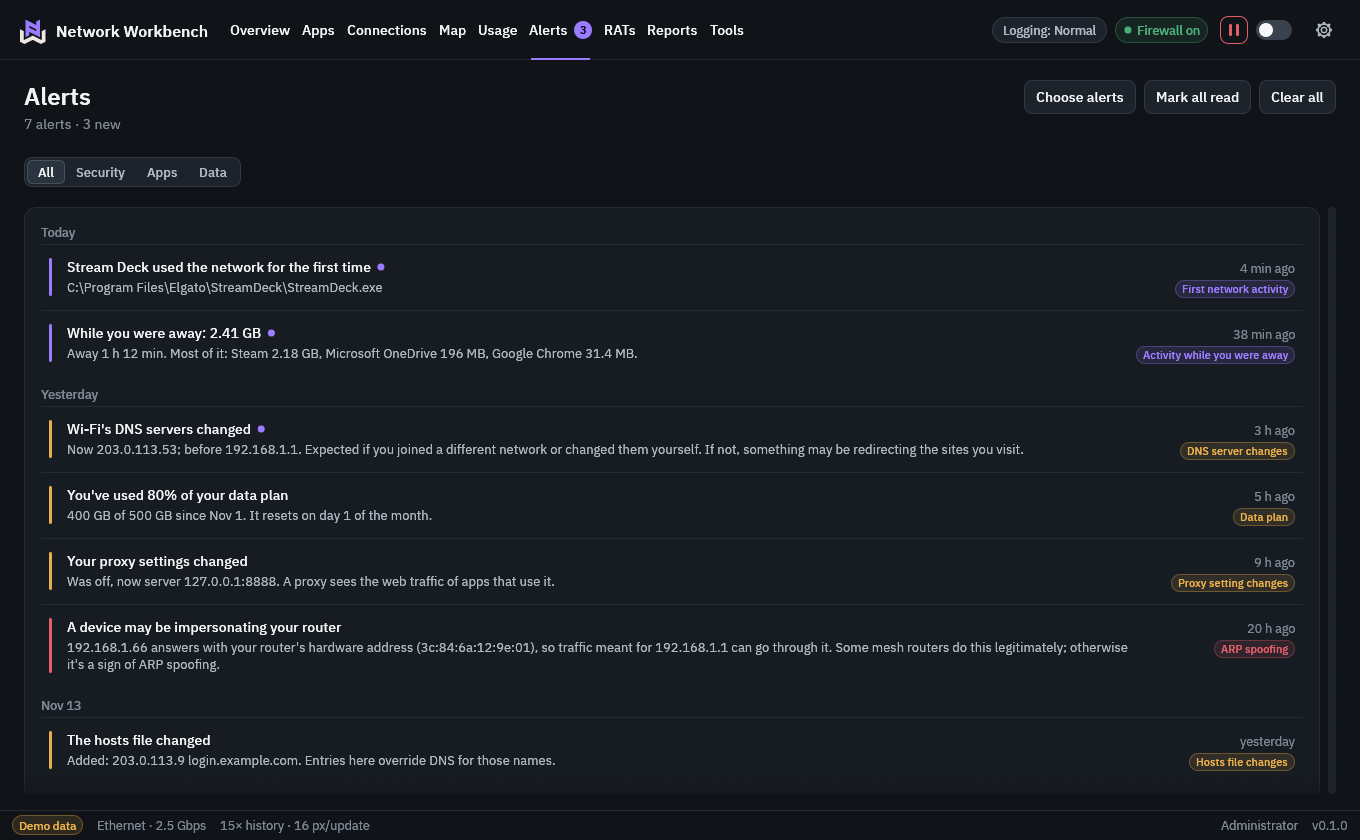
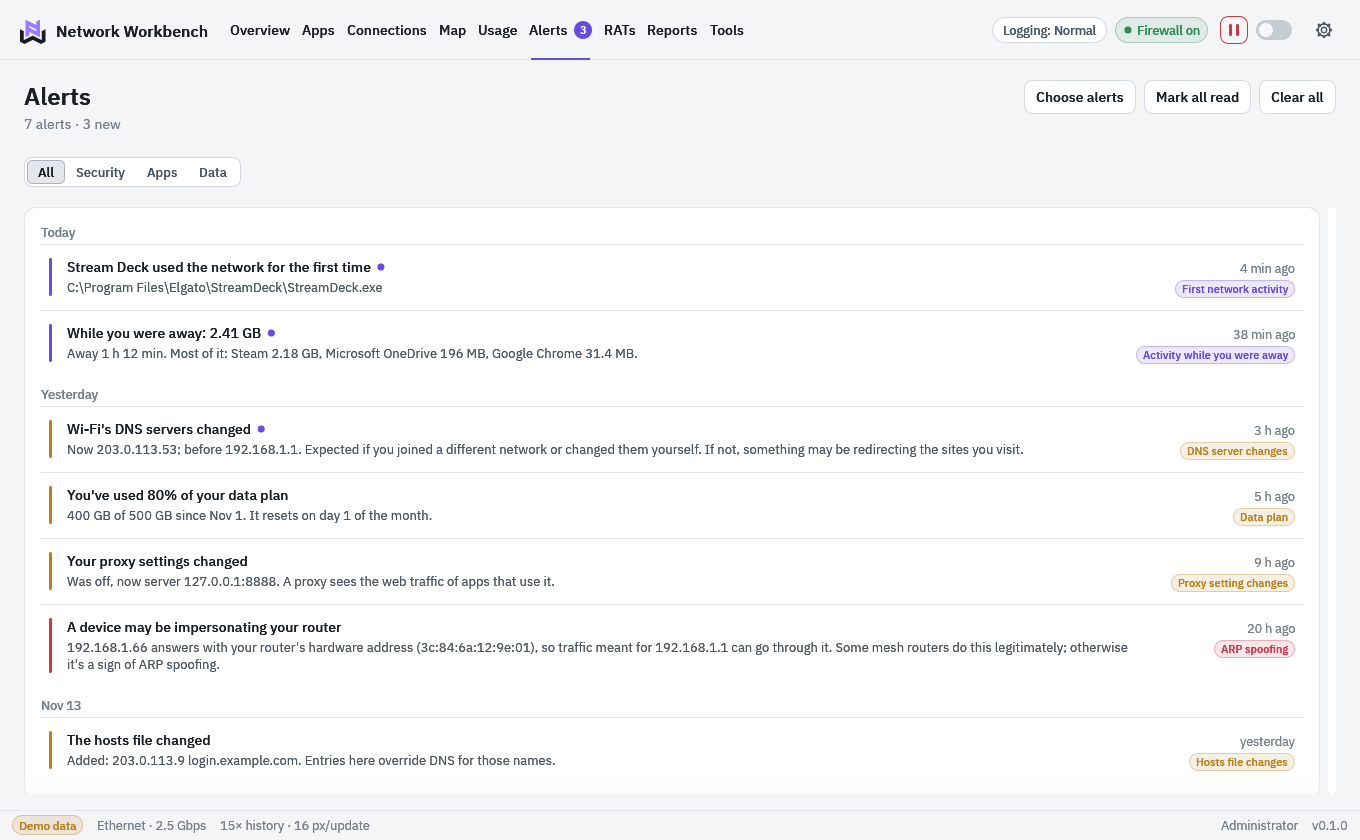
An app uses the network for the first time. Your DNS servers change. Your router’s address answers from different hardware. The hosts file is edited or a proxy appears. Each is a way a network gets tampered with, and each raises an alert you can turn off.
Come back after ten minutes away and an idle summary lists what moved data while you were gone.
- Every kind has its own switch
- Shown as Windows notifications when the window is away
Check your speed or test a server.
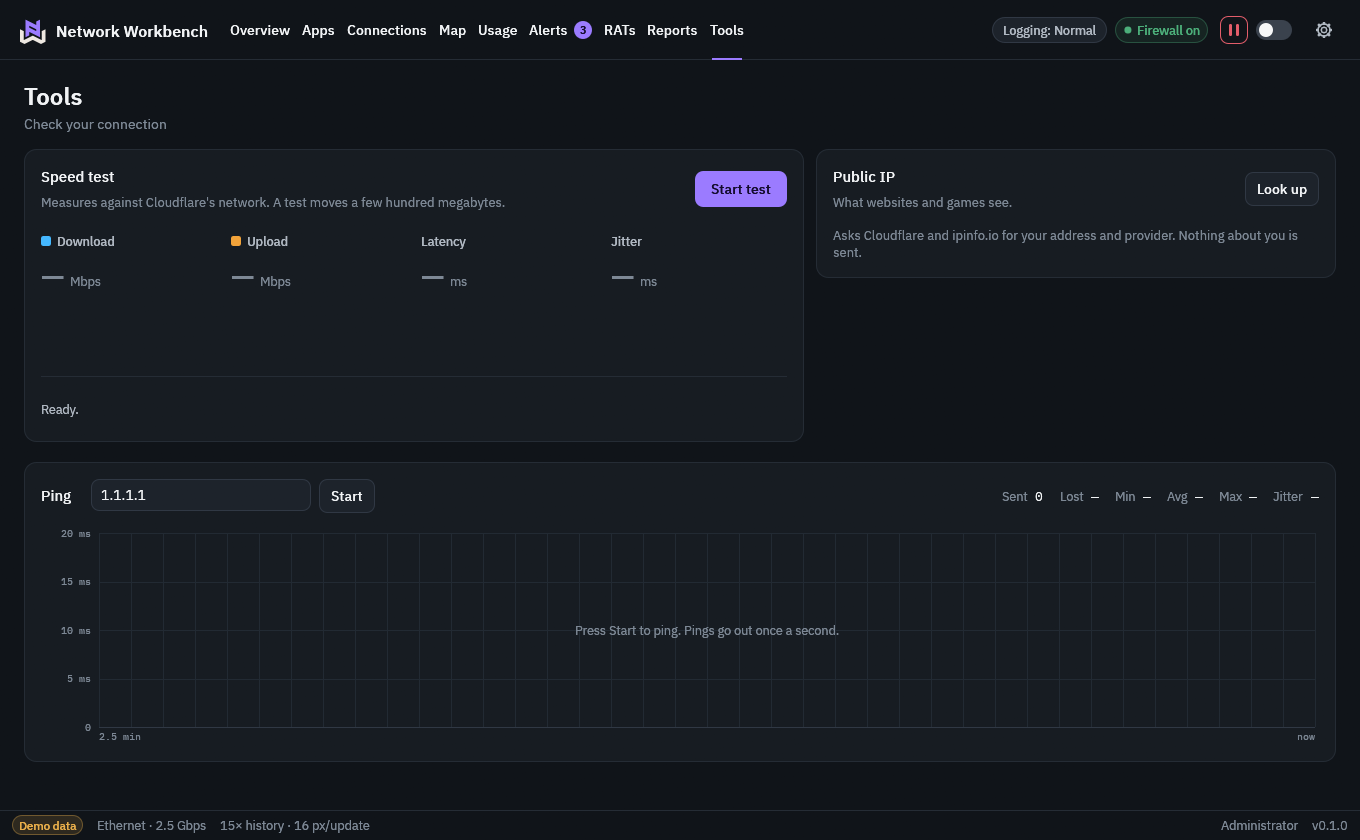
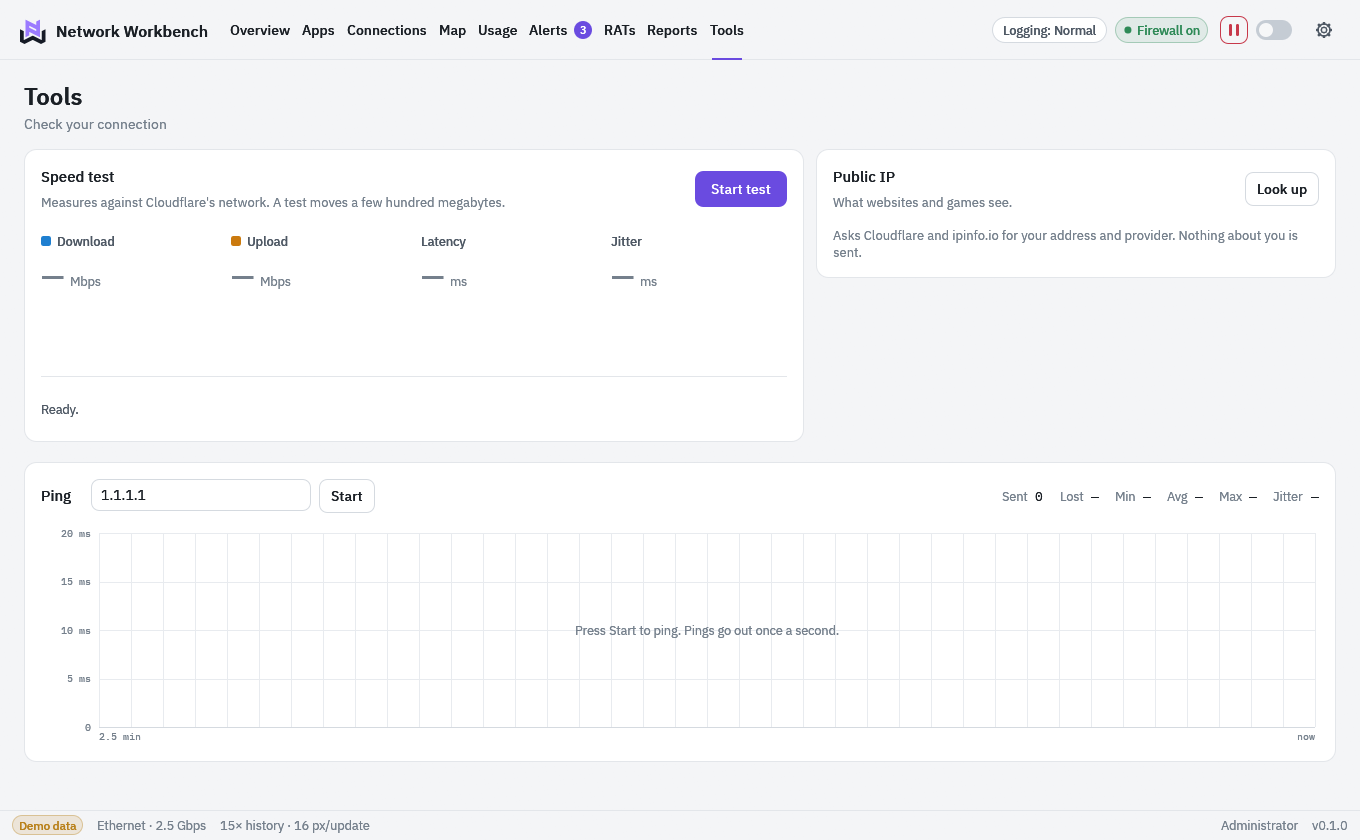
A speed test with idle latency, download and upload. Your public address, provider and location. A ping chart to any host. Nothing runs until you press its button.
These three contact outside servers when you use them.